





 Personal Loan

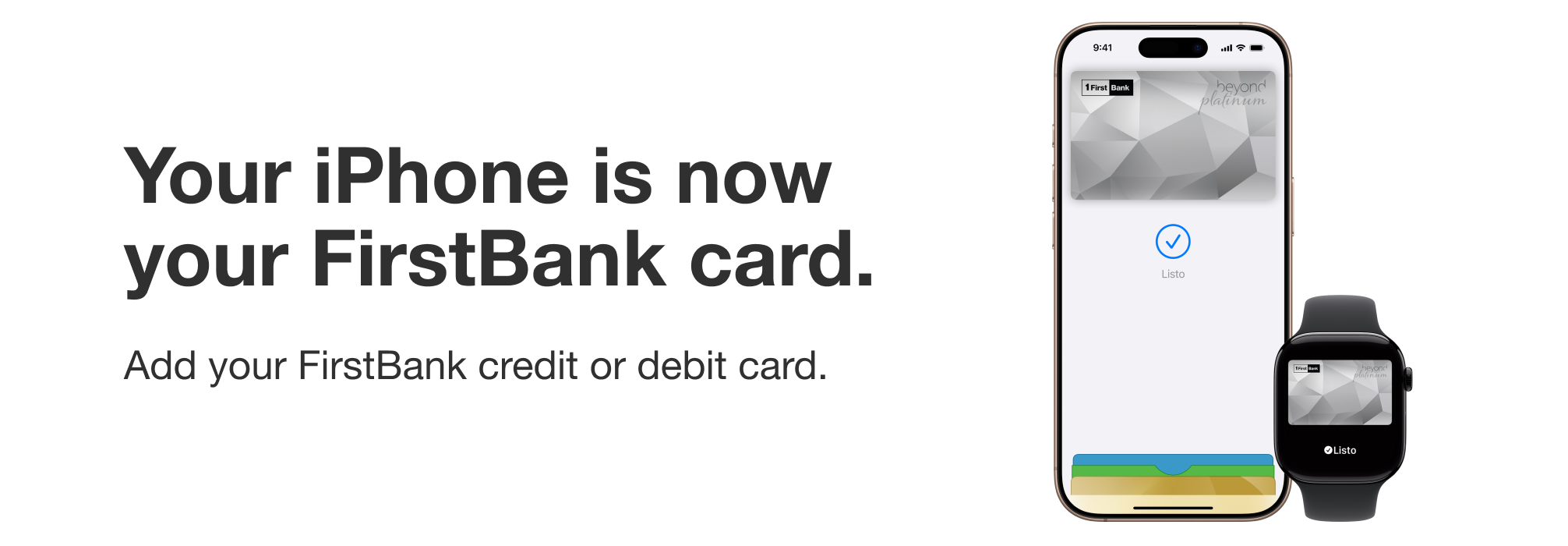
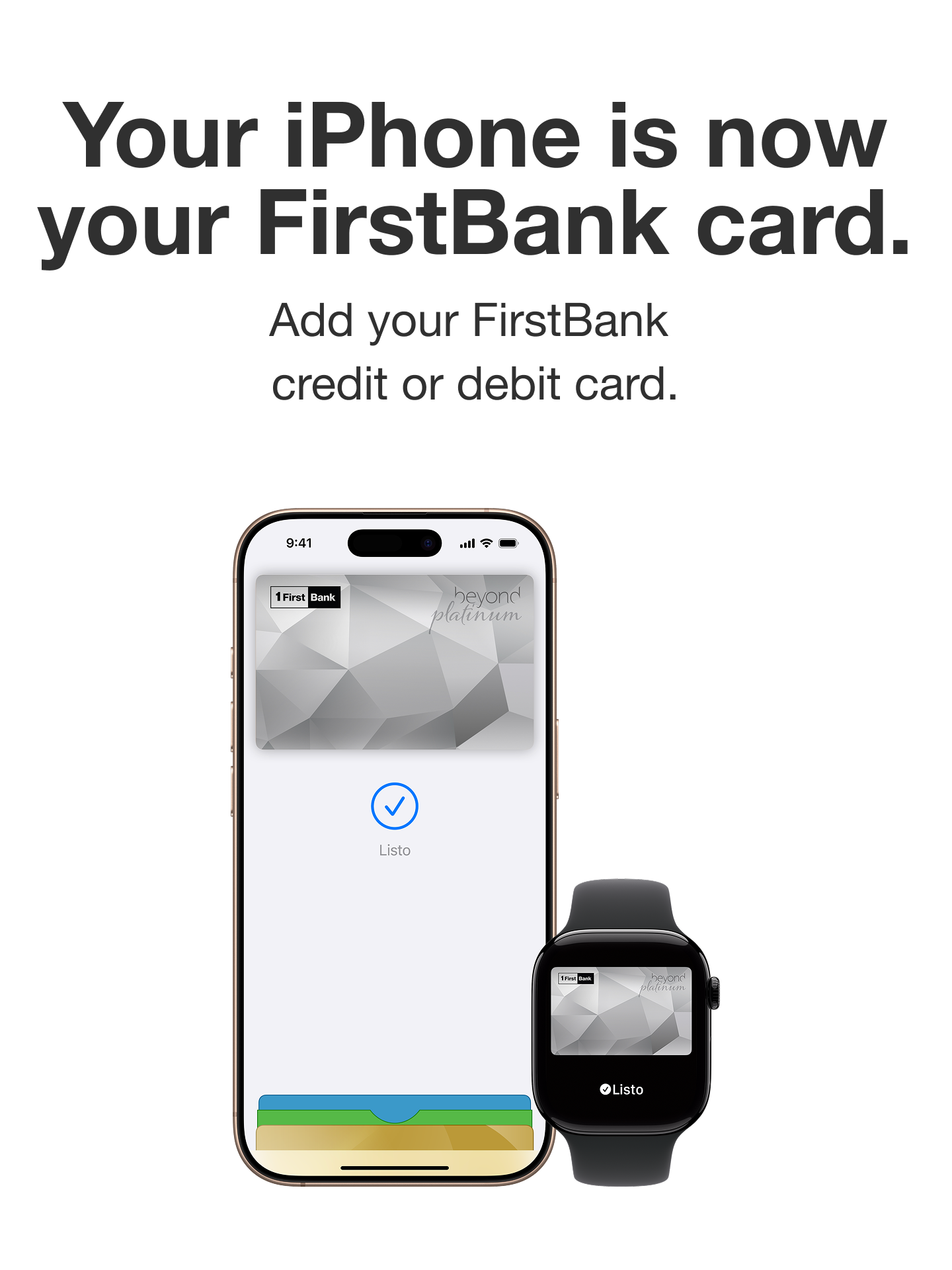
Benefits of paying with Apple Pay

Pay quickly and contactless at thousands of merchants.

Your purchases are secure when using Face ID or Touch ID.

Your data remains private and is not shared with merchants.
How to add your card from your Apple Wallet
Step 1
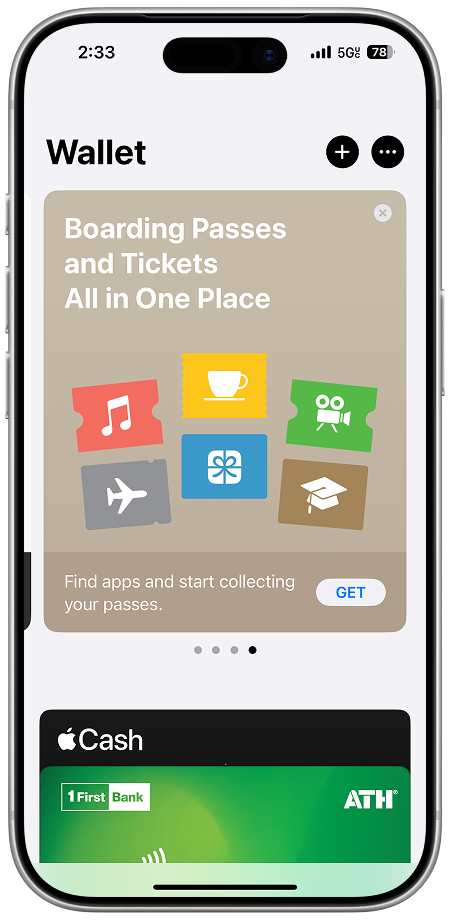
Open the Apple Wallet app on your iPhone and tap the “+” button
Step 2
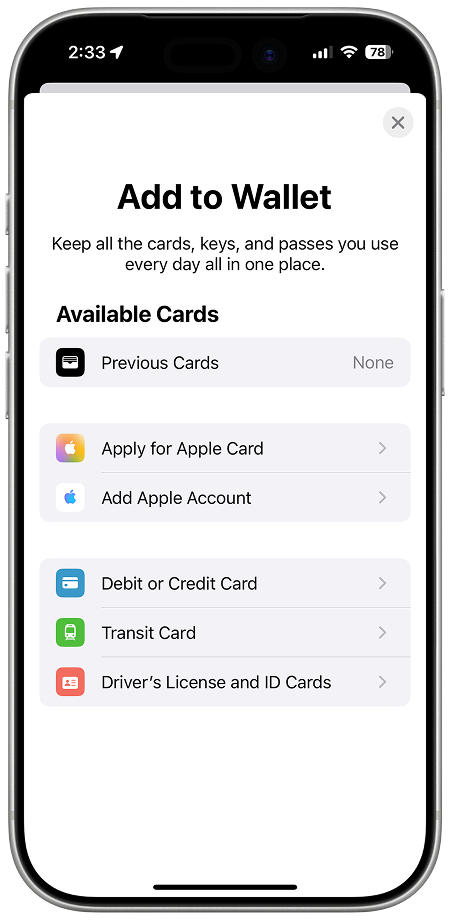
Select debit or credit card
Step 3
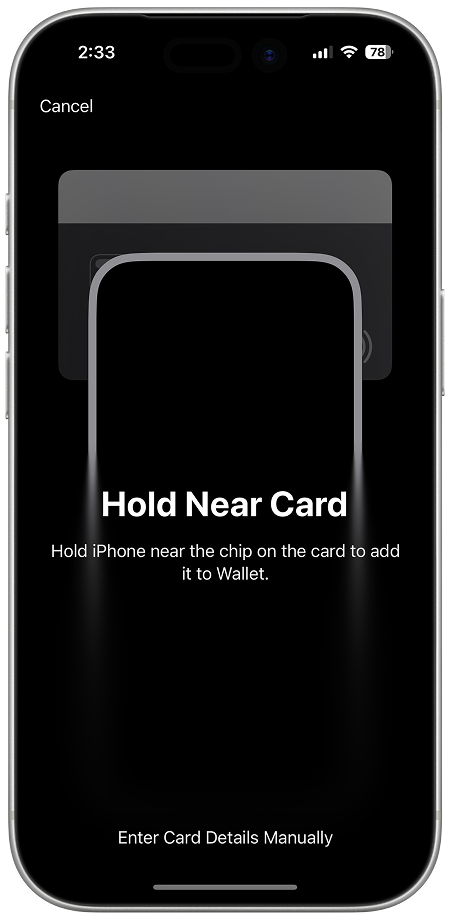
Hold your iPhone close to your physical FirstBank card and follow the steps to add it
Step 4
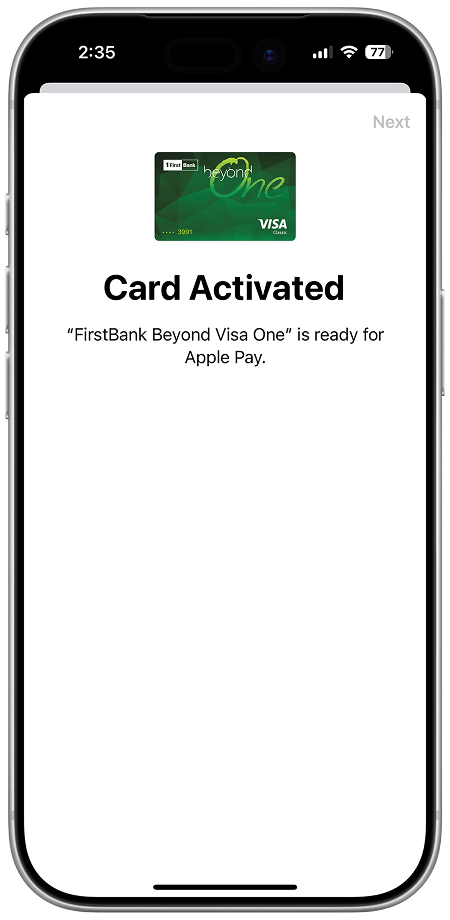
Accept terms and conditions and Ready! Your card has been added
How to add your card from Tu Banca Digital
Step 1
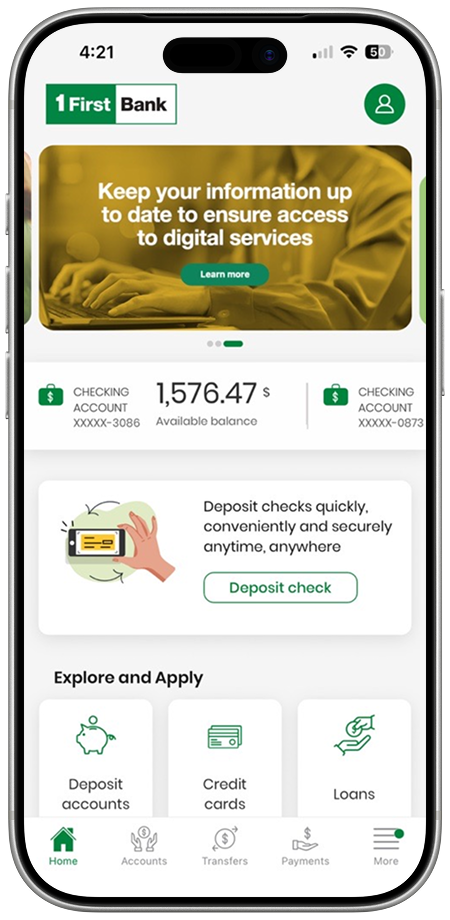
Open the FirstBank Tu Banca Digital app
Step 2
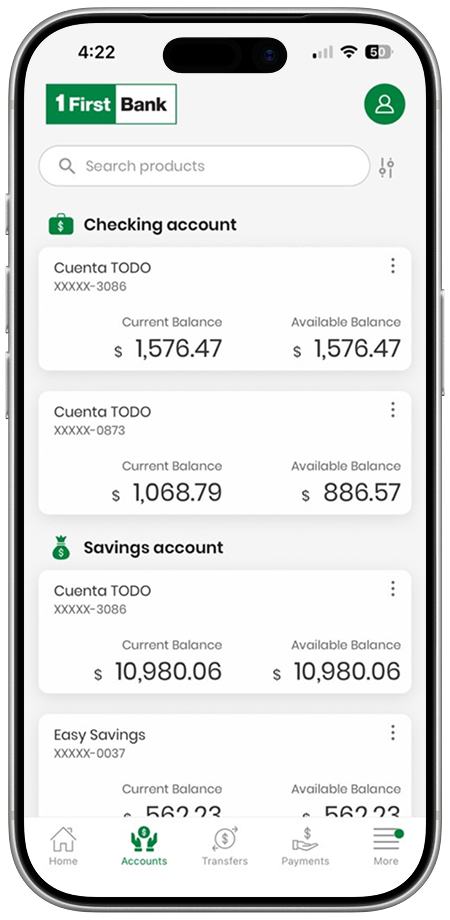
Select the credit card or deposit account associated with the card you want to add
Step 3
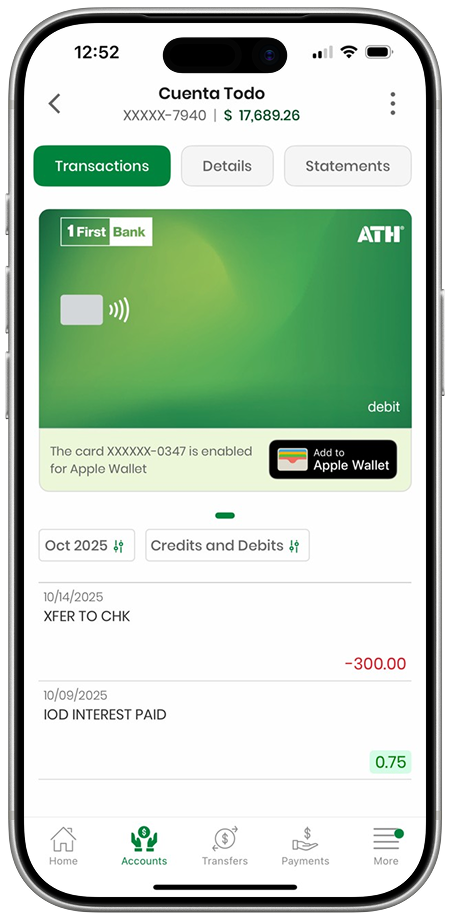
Press the button to register the card with Apple Pay and enter the verification code
Step 4
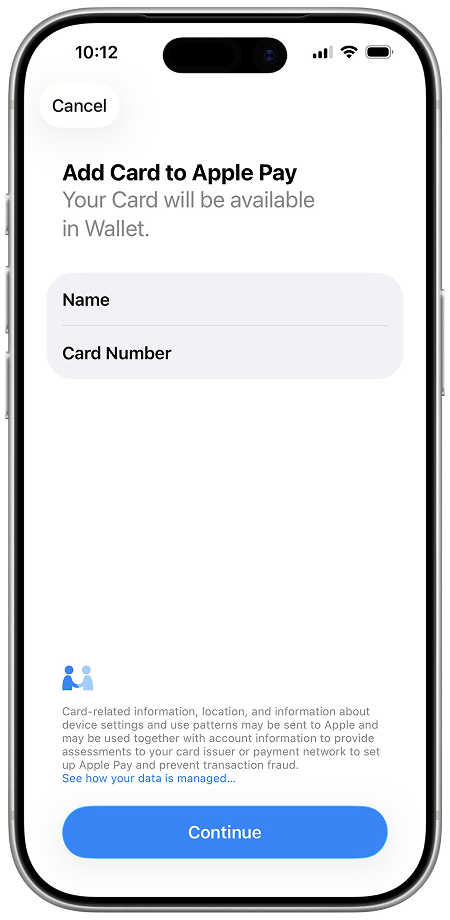
Complete the process by following the on-screen instructions.
How to Pay with Apple Pay
In stores:
Pay quickly and easily with Apple Pay from your iPhone: double-press the side button on your device, authorize the purchase with Face ID, Touch ID, or your passcode, and hold the device near the payment terminal. When the ‘Done’ symbol appears, it means the transaction has been processed.


Online or in apps:
To pay quickly online or in apps with your iPhone, iPad, or Mac, tap the Apple Pay button, confirm your billing and shipping information, and then authorize the purchase with Face ID, Touch ID, or your passcode. When the ‘Done’ symbol appears, it means the transaction has been processed.
With Apple Pay and FirstBank, your purchases are more secure.
With Apple Pay
and FirstBank, your purchases are more secure.
Your card is never shared with merchants, and every transaction requires Face ID, Touch ID, or your device’s passcode.
Privacy and protection in every payment.

Frequently asked questions
Apple Pay is a mobile payment system (also known as a digital wallet) developed by Apple to allow users to conduct transactions quickly and securely using compatible Apple devices at physical stores, with apps, and on websites. You don’t need a physical card to make a payment.
Yes, Apple Pay is an easy and secure way to pay. It does not store or share your card number or identity with merchants or with your device, and all transactions are authenticated with Face ID, Touch ID, or a passcode.
To make purchases with your iPhone, Apple Watch, Mac or iPad, you must use Face ID, Touch ID or your passcode.
Follow these steps:
1. Open the Wallet application on your iPhone.
2. Tap the plus sign (+) at the top right corner.
3. Select Add Debit or Credit Card and enter your FirstBank card details.
4. Follow the verification instructions provided by FirstBank to complete the activation process.
5. Once verified, your card is ready to use with Apple Pay.
To add your card from the Digital Banking site, follow these steps:
1. After signing in with your credentials, go to the Accounts section and select the product associated with the card you want to register in Apple Pay.
2. Click on the “Add to Apple Wallet” button to register the card in Apple Pay.
3. Enter the verification code to complete the two-step authentication.
4. Follow the steps on the screen to complete the registration.
5. You’re ready to go! Now you have your card in your Wallet.
Steps to pay with your iPhone:
1. Press the side button twice.
2. Your default card will appear on the screen. If you want to pay with another card, select it and authenticate it again.
3. Place the upper part of your iPhone near the contactless reader until you see Completed and a checkmark appearing on the screen.
Steps to pay with your Apple Watch:
1. Press the side button twice.
2. Your default card will appear. You can select another one by swiping on the screen.
3. Place the Apple Watch screen close to the contactless reader until you feel a slight vibration, hear the confirmation sound, and see Completed on the screen with a checkmark.
Visa and Mastercard debit and credit cards issued to individuals are eligible to be added to Apple Pay.
Eligible Debit Cards:
-
Visa Debit
-
Visa Infinite Preferente
-
Visa Infinite Platinum
-
Mastercard Debit
Eligible Credit Cards:
-
Beyond One Mastercard
-
Beyond One VISA
-
Beyond Platinum Mastercard
-
Beyond Platinum VISA
-
Beyond Global VISA
-
Beyond Ultimate Mastercard
-
Beyond Ultimate VISA
-
Beyond Business Mastercard (DBA)
Visit this link for a full list of Apple devices compatible with Apple Pay.
You can do this directly from the Wallet app:
- Open the Wallet app.
- Press on the card you want to set as your default card.
- Drag it to the front of the rest of the cards.
You can also do it from Settings:
- Go to Settings > Wallet and Apple Pay.
- Under Transaction Defaults, tap on Default Card.
- Select the desired card.
On your iPhone, open the Apple Watch app.
1. Go to My Watch > Wallet and Apple Pay.
2. Tap on Default Card.
3. Select the card you want to use as your preferred card.
You can use Apple Pay at any merchant that accepts contactless payments, as well as apps and websites that display the Apple Pay option. You can also use it on some transportation services and within compatible apps.
Apple Pay is available in many countries and regions around the world. To see the full and updated list, you can visit the following official Apple link: Countries and regions that support Apple Pay – Apple Support
No. FirstBank will not charge any additional fees for using Apple Pay. However, transactions with your FirstBank debit or credit card are subject to your card’s usual terms and fees.
If your device is lost, you can protect your Apple Pay and card information by using the Find My feature.
-
Your device automatically locks.
-
All your cards in Apple Pay are immediately suspended.
2. If you don’t have another Apple device available, you can do the entire process directly from any browser by accessing iCloud.com.
No. This is not required for Apple Pay. Apple automatically suspends cards in Apple Pay when Lost Mode is activated.
However, if you want to block your physical card (debit or credit), you must contact your bank to request it.
You can review transactions with Apple Pay in the Wallet app on your iPhone, or the FirstBank Digital Banking site.
Yes. When you suspend or remove your cards from Apple Pay, your physical card is still active, and you can use it normally to make payments.